• Skip to primary navigation
  • Skip to main content
  • Skip to footer
Construction Viz

Construction Viz

Project Management Perfect

  • About
  • Features
  • Apps
  • Blog
  • Contact
  • Download Flyer
  • Get Started Today
  • Login
Hide Search

Project Management Tools

Old School Meet the New School: Construction Viz File Manager

Project Management Tools | February 6, 2024

There are two camps for how to store project files in a project management information system (PMIS): use folders or tag files with metadata. Both approaches have their advantages and disadvantages. With the new Construction Viz File Manager, you can choose either method or both for your projects. Read on to find out how the Construction Viz File Manager can help you manage your project documentation how you want.

File-Mgmt_1

Like the cola wars between Pepsi vs. Coke, storing project files in folders or tagging files with metadata has proponents firmly dug in on both sides of the argument. Knowing that these two camps are resistant to change is why Microsoft offers multiple applications like OneDrive and SharePoint, which store files differently (but they are becoming more similar with each new release).

The case for storing your files in folders

The old-school approach to managing files has always followed the same approach as Windows Explorer, where you drag and drop files into named folders.

A folder-based approach makes storing files simple, but finding them when needed can be challenging depending on the folder hierarchy. You can use search in some instances to find your files by reading the data within them. However, you must often understand the folder structure to find your desired file.

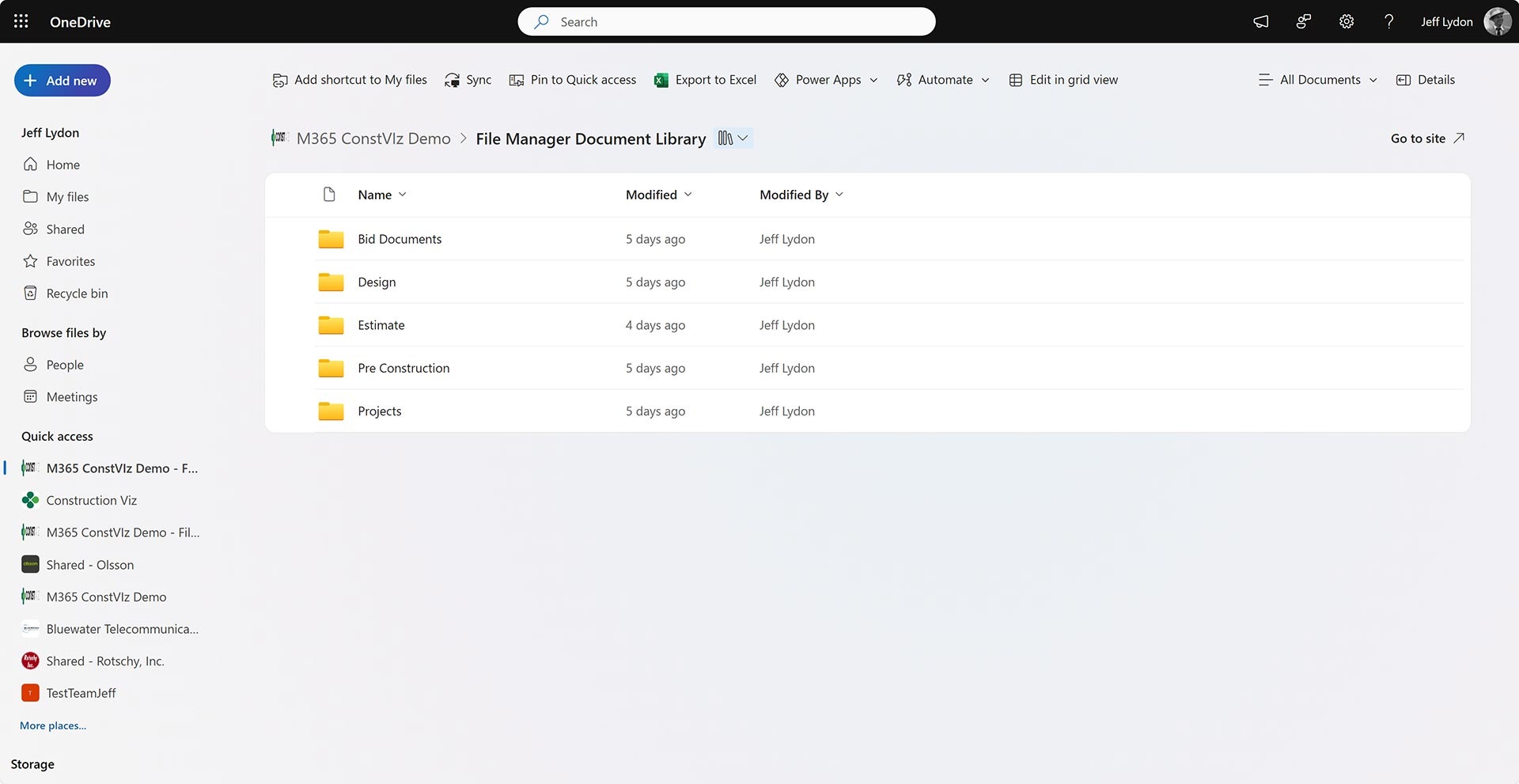
Microsoft 365 OneDrive home screen with folders.

The case for organizing your files with metadata

If you tag files with metadata, you can search, filter, and report on those tags, but it does force some up-front work. The person uploading the file must tag data (depending on how you set up the drop-off workflow) to the file in order to effectively search for the file later. So, while metadata tagging is excellent for document control, it can frustrate users on the front end.

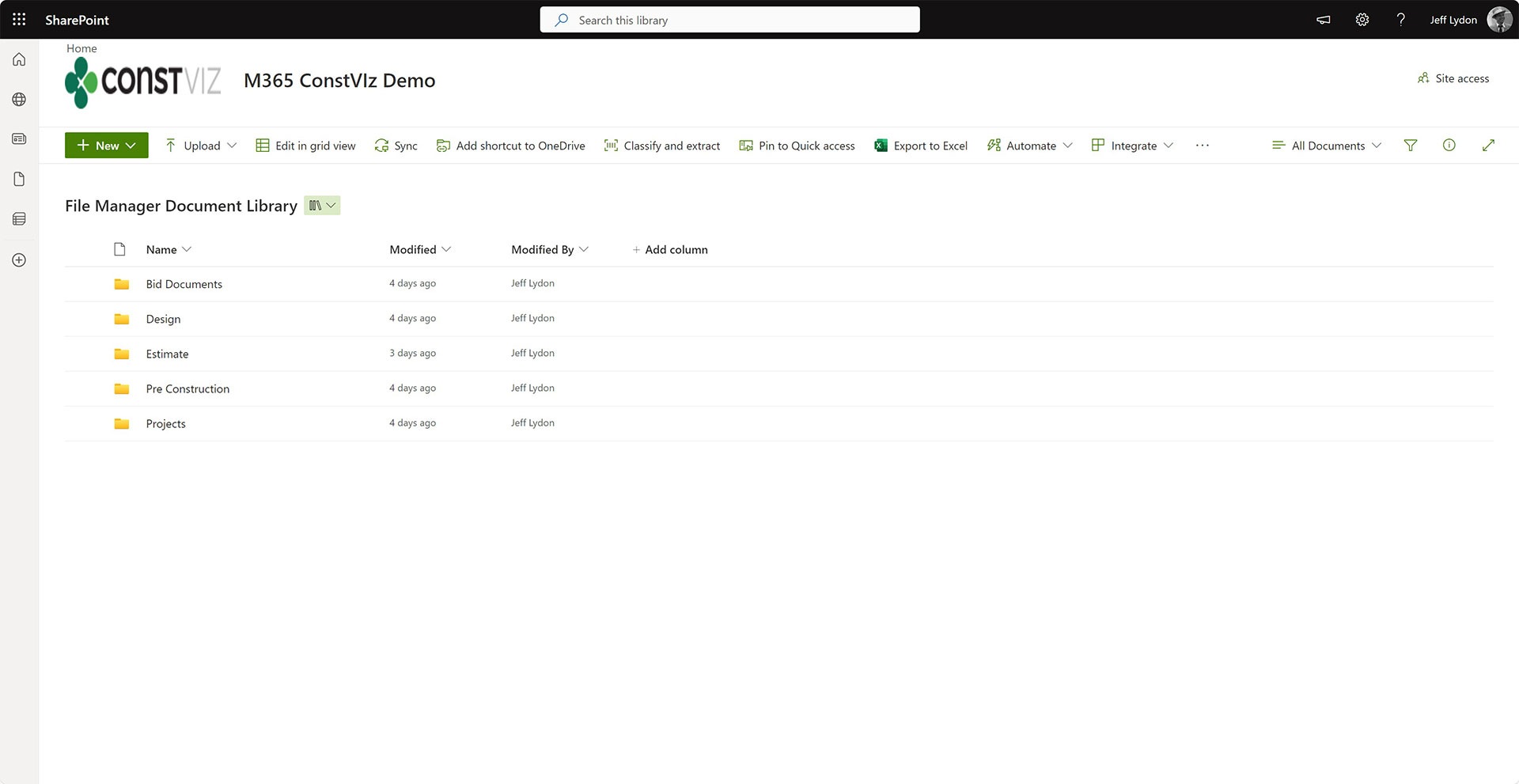
SharePoint Document Library with metadata columns Project and Location.

With Construction Viz, we have been a metadata tagging proponent. The more metadata you collect, the more reporting and analysis you can do. So, we structured the system around metadata collected via our form technology. If users preferred to use folders, we would link to SharePoint libraries or OneDrive since we stored data in SharePoint. But with our File Manager app, things are about to change.

How can I use both metadata and folders?

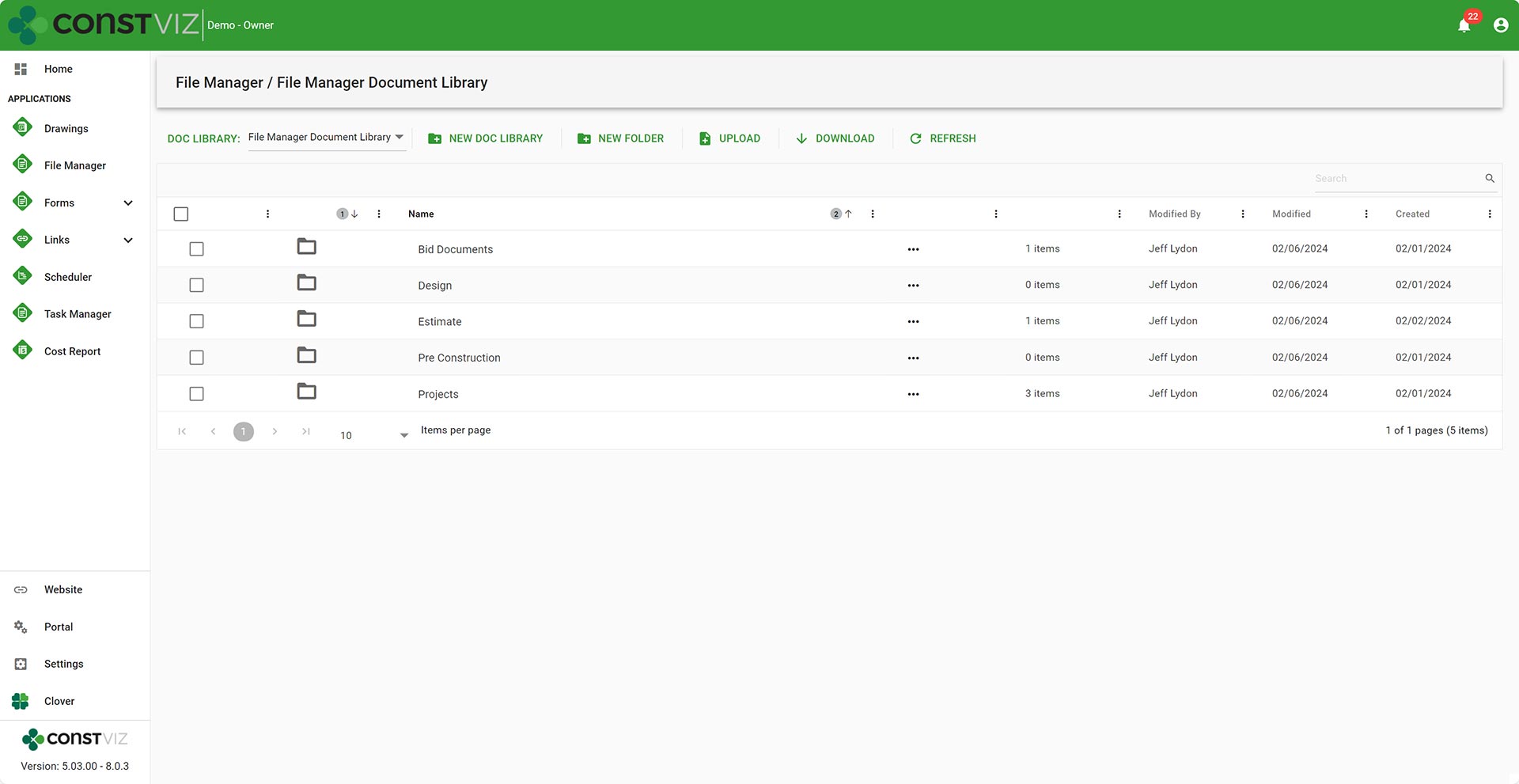
The new Construction Viz File Manager provides the folder management file storage that users love without leaving the Construction Viz hub. Users can build out a custom folder structure similar to OneDrive or Windows Explorer and can link files into forms within Construction Viz.

File-Mgmt_C
SharePoint Document Library with metadata columns Project and Location.
Microsoft 365 OneDrive home screen with folders.

The File Manager seamlessly integrates SharePoint, OneDrive, and Teams files. 

The File Manager boasts the following capabilities:

  • Select any document library in your SharePoint site to create folders or upload documents without having to navigate to SharePoint.
  • Select the default documents library in SharePoint to have files synced across Teams, OneDrive, and SharePoint automatically.
  • Upload files using our standard document attachment uploader that checks file names and allows editing files on the fly.
  • Link files stored in the File Manager to other Construction Viz applications, such as RFIs, submittals, and daily reports.

With the Construction Viz and the new File Manager app you get the best of both worlds of both folders and metadata. You can store files in folders like Windows Explorer or tag them with metadata automatically when adding them as attachments to our forms.

Video overview of the Construction Viz File Manager app

We continue to focus on delivering solutions that meet you where you work and how you work. The File Manager is one of many applications we have implemented that allow you to make the most out of Microsoft 365 to manage your construction projects. You can find out more about Construction Viz here or request a free one-hour consultation with our Microsoft 365 professionals.

New eSignature Feature for Construction Viz 

Construction Viz, Project Management, Project Management Tools | December 20, 2023

As construction organizations move from paper processes to web-based project management tools, the adoption of electronic approvals has been mixed. Clicking an approved button that registers your account name and date is standard in most construction management systems. However, some organizations and specific forms still require digital or wet signatures. While several electronic signature tools are on the market, their ease of use and cost can be a deterrent. We added a free and easy-to-use digital signature feature to Construction Viz to capture signatures in any of our forms. Read on to discover how our simple signature feature might address your challenges. 

Several signature solutions are available for SharePoint, including the new built-in SharePoint eSignature subscription service that will be available soon. The benefit of these tools is that files that receive signatures never leave your Microsoft 365 tenant, ensuring your data remains secure and in your control.  

Leveraging these eSignatures through SharePoint is great but does require additional subscription costs and administration. What if you want something simpler and at no extra cost?  

Construction Viz eSignatures Feature for Construction Forms

Picture1

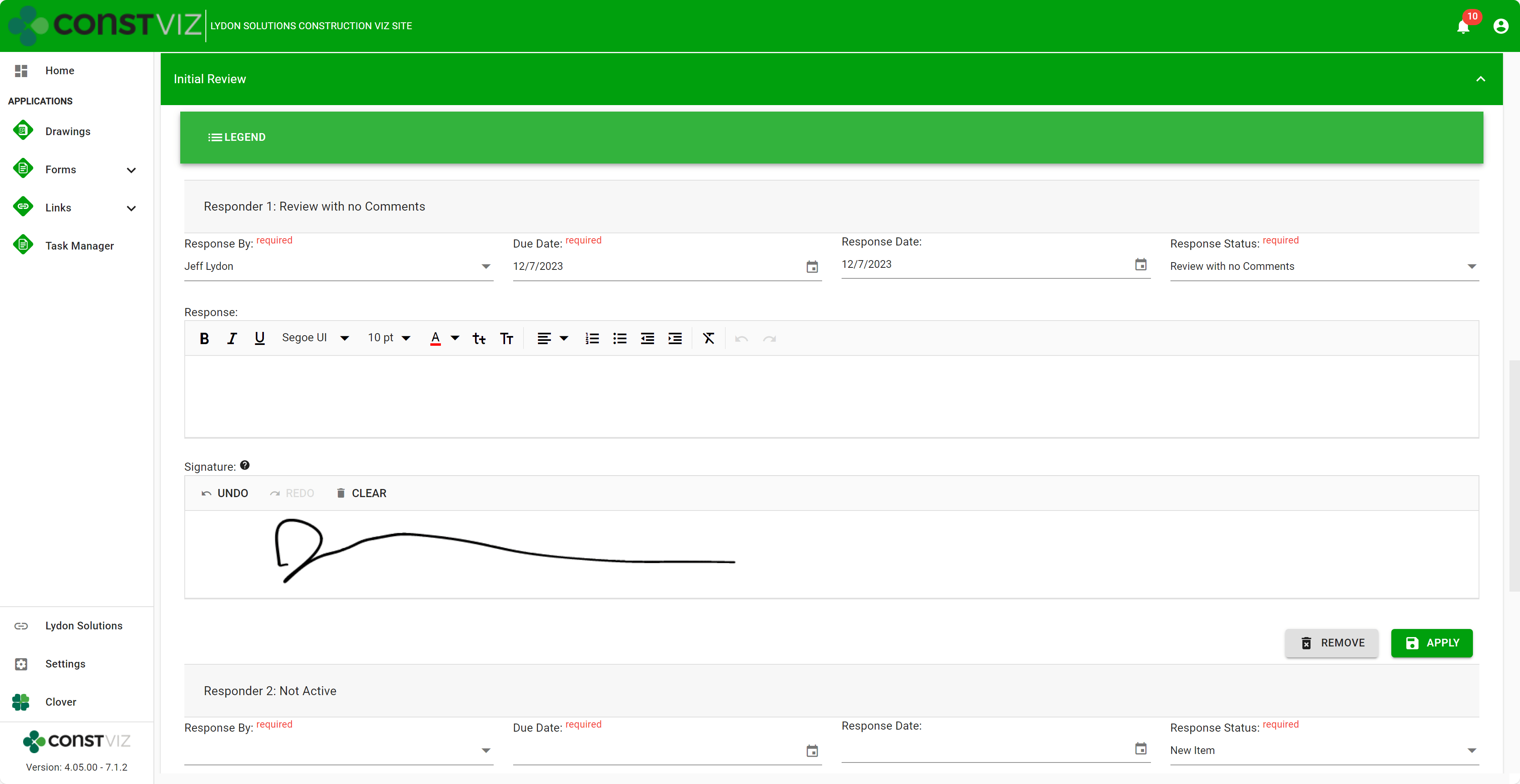
With the Construction Viz eSignature feature, signatures are available on any form in the review components. For example, say you want an inspector to sign a daily report digitally. We can activate eSignatures in your Construction Viz settings to automatically add eSignatures to all your daily report forms. 

Since this new eSignature feature is built into Construction Viz, we included additional controls such as: 

  • Only the user assigned the review can sign their signatures. 
  • If a user is removed from the reviewers, their signature is removed as well.  
  • Administrators are restricted from signing on behalf of a user.  
  • eSignatures are available on any Construction Viz form! 
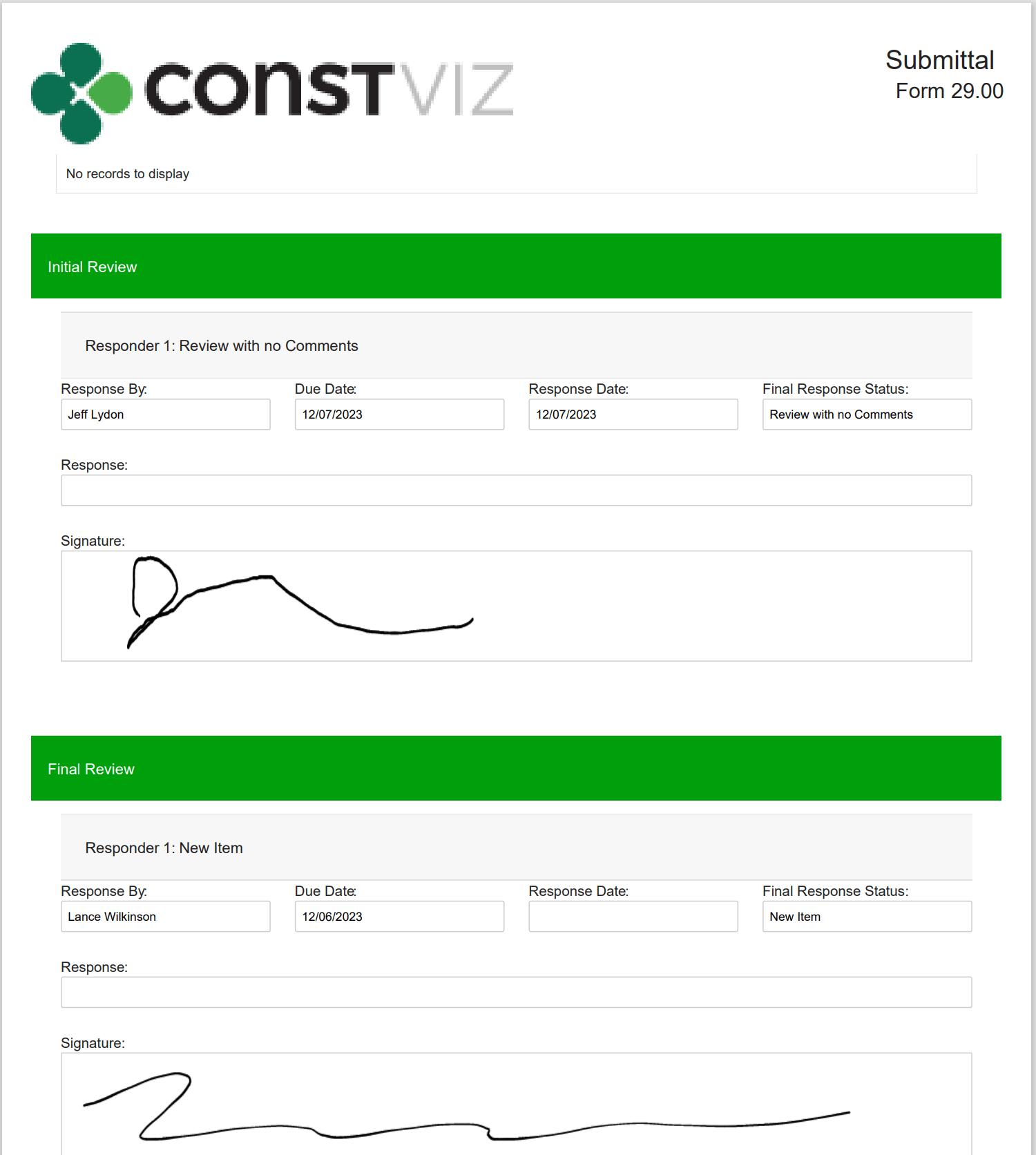
  • eSignatures print in form reports! 
Picture2

Our new eSignature feature is perfect if you need a simple, free solution within Construction Viz. You can find out more about Construction Viz by requesting a demonstration here. 

Construction Viz Task Manager 2.0 – Gantt Charts Coming to Task Management

Project Management, Project Management Tools, Scheduling | November 28, 2023

The Construction Viz Task Manager app for Microsoft 365 delivers a simple yet powerful way to track and report on project tasks. It is a stand-alone application in Construction Viz but can be integrated into any other application, such as RFIs, Submittals, or Meeting Minutes. With the latest update, we’ve moved the needle significantly on project task management to include scheduling, checklists, and sub-tasks!

Read on to find out more about how our updated Task Manager app can help you organize and track tasks for your projects.

What is New in Construction Viz Task Manager 2.0

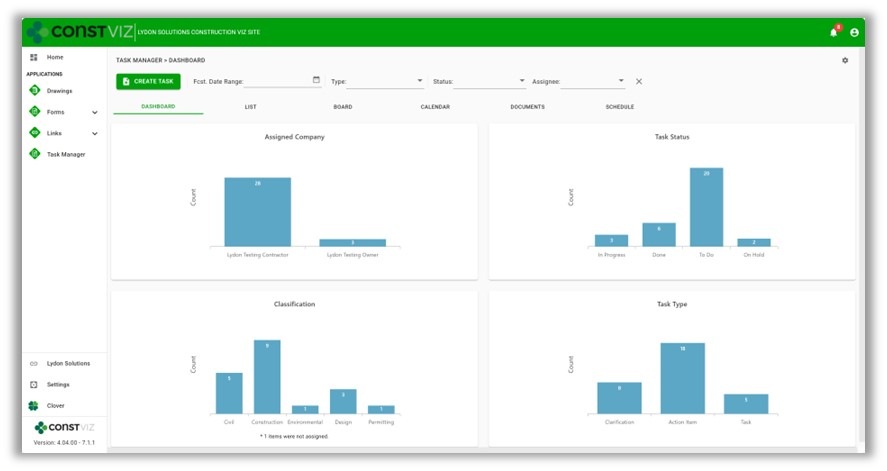
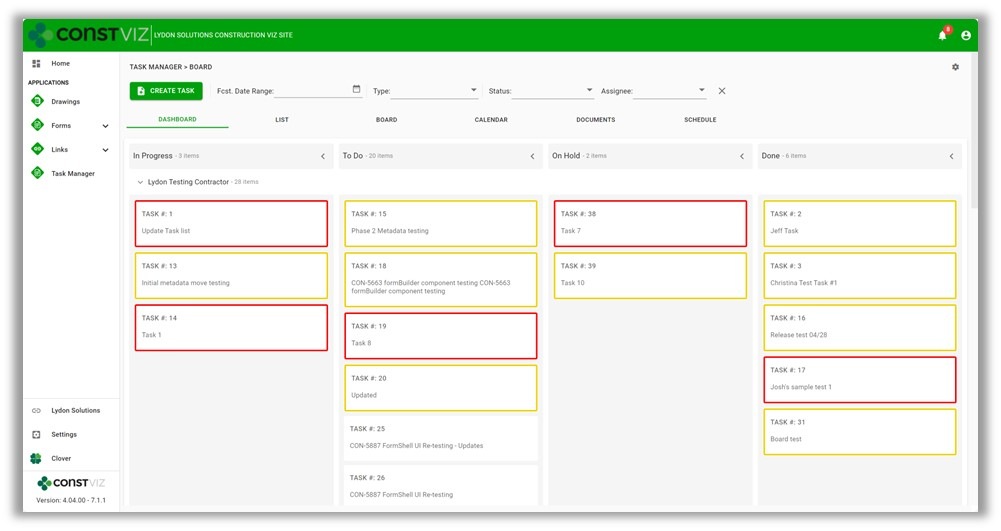
We built the Task Manager so that team members have a 360-degree view of project tasks. The Task Manager includes the following views:

  • Dashboard – Displays charts of key metrics with drill-down capability.
Picture1
  • List – Provides a log of all tasks with filtering, grouping, and search.
  • Board – Displays a Kanban view for updating the status of tasks.
  • Calendar – Plots tasks on a familiar calendar with today, day, week, month, and agenda views.

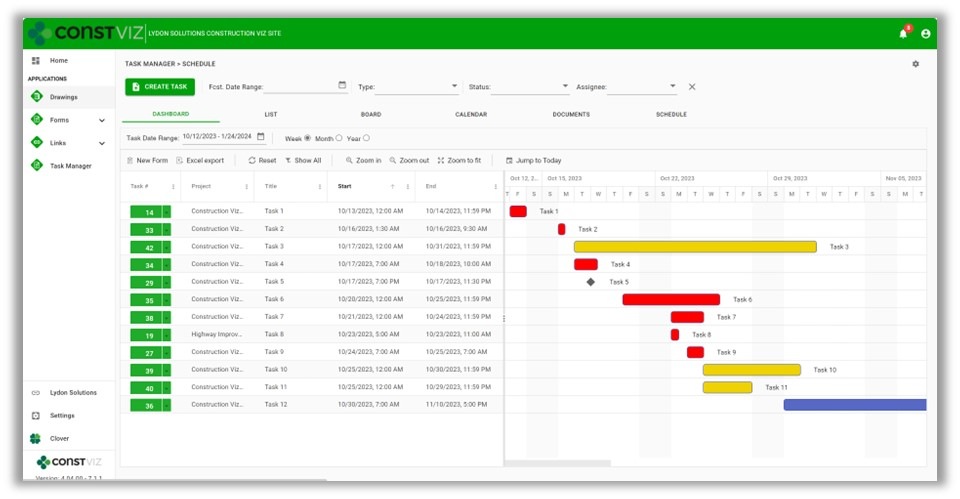
With the latest Task Manager release, we are extending the functionality to include lightweight scheduling. So, if you are looking for a three-week look ahead project schedule tool or prefer a Gantt chart-style view of your tasks, we’ve got you covered.

This release includes the following updates to the Task Manager app:

  • Schedule View – A new view that displays all tasks in a familiar Gantt chart schedule. The schedule includes scheduling controls to filter and change displays.
Picture2
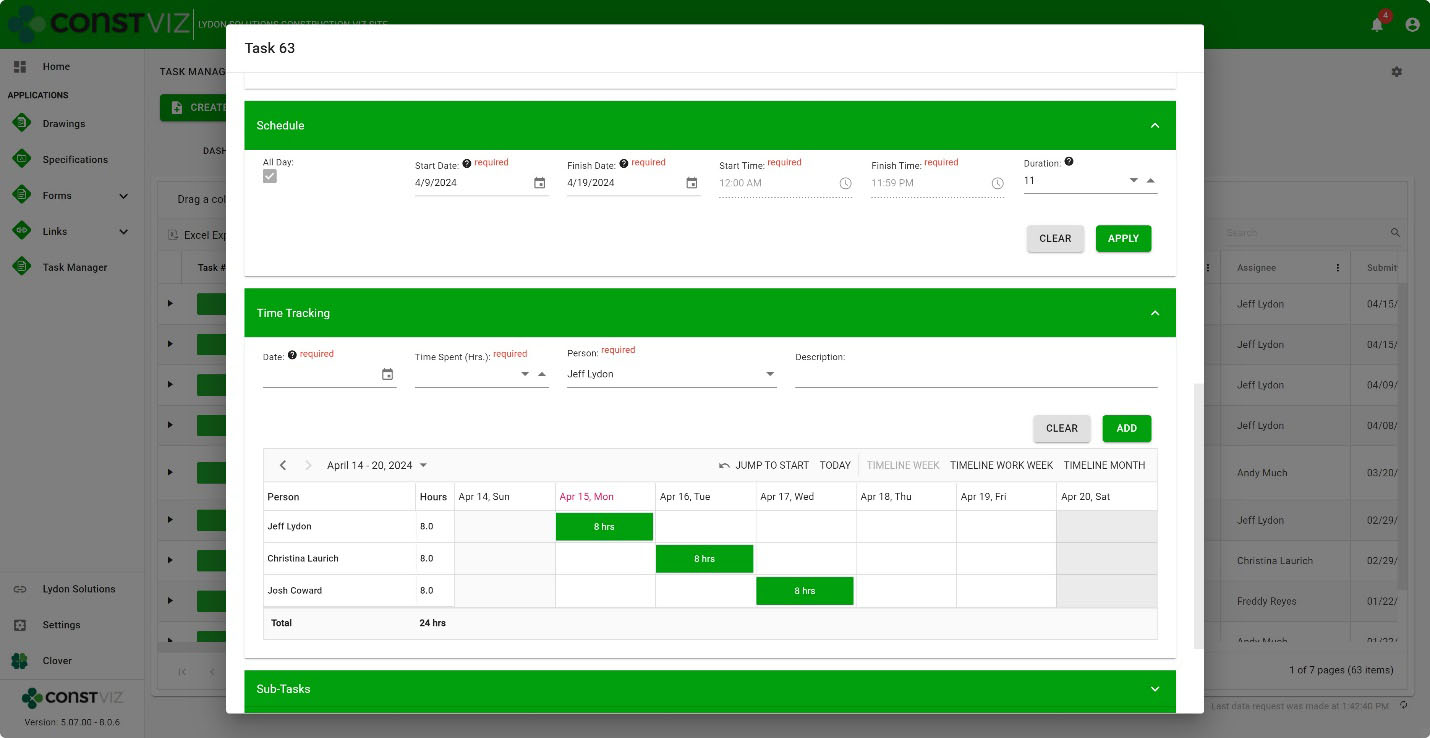
  • Task Schedule component – We added a scheduling component to the task form for managing start and finish dates, times, all-day events, and durations.
  • Task Checklist component – We added a checklist component to the task form to track items needed to complete the overall task. The checklist allows for drag-and-drop ordering, auto-assign completed by, and completed dates.
  • Sub-task component – We added a component to the task form to add sub-tasks to a task. Sub-tasks include fields for the required by date, forecasted completion date, status, and percent complete.
  • Visual alerts – We updated the mouse-over tooltips and added color indicators across views to display late and incomplete tasks. These visual alerts will help project teams stay on track.
Picture3

While these updates are significant, we are just getting started. We plan on further extending the scheduling capabilities of the Construction Viz Task Manager app, including dependencies and resource management. Stay tuned as we continue to deliver a leading-edge task management solution with Construction Viz for Microsoft 365!

Sign up today for a no-obligation demo to learn how Construction Viz can help your organization manage your construction projects more efficiently.


Archive Your Project Data in Three Clicks with the Construction Viz PDF Report Wizard 

Project Management, Project Management Tools, Reporting | October 26, 2023

Have you ever needed an easy way to archive PDF versions of all your project correspondence, such as RFIs and daily reports, including attachments (which could be in various file formats)?  

The new Construction Viz PDF report wizard aims to build on our existing technology with the ability to generate PDFs from multiple forms at the same time. Read on to find out more about this new feature. 

Introducing the Construction Viz PDF Report Wizard

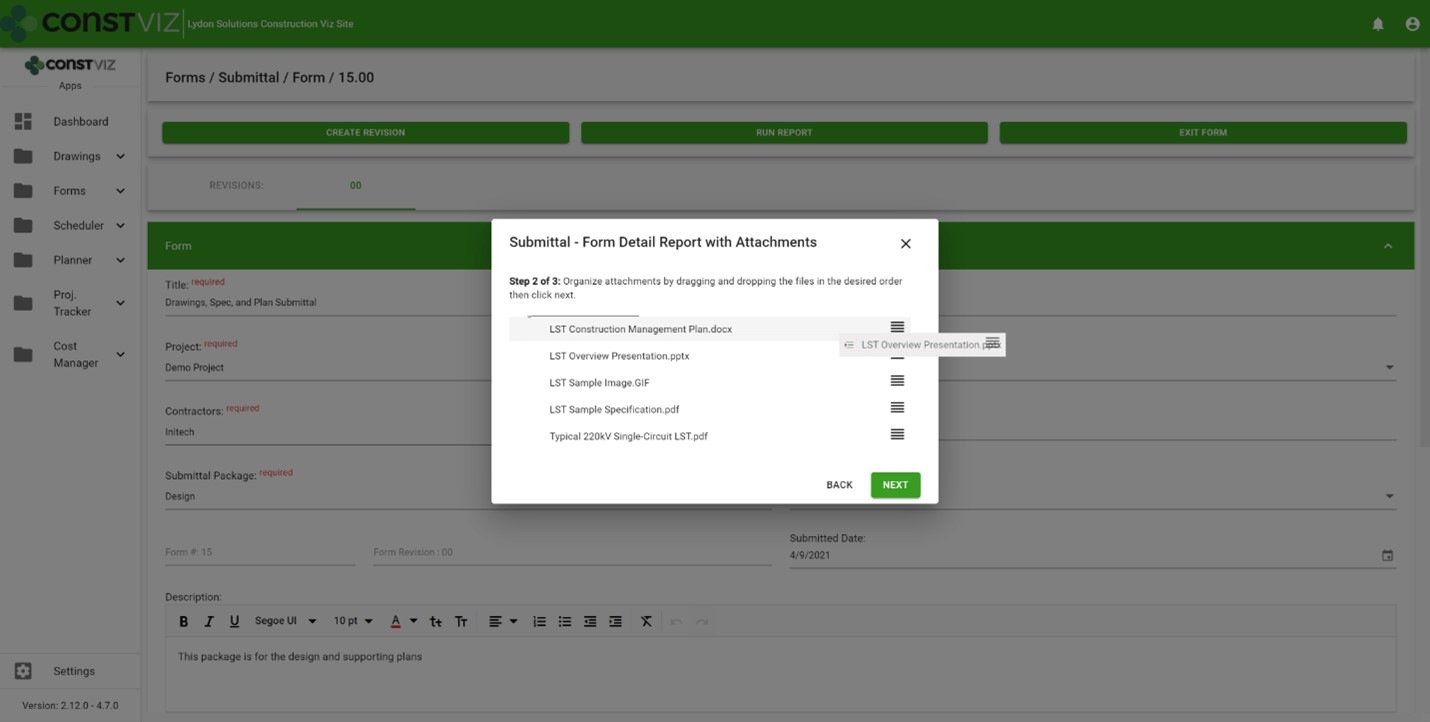
We built the Construction Viz PDF Report Wizard based on the Construction Viz Form archive wizard which is a powerful and heavily used feature in Construction Viz. It allows users to create PDF binders from any form, including the form attachments. The step-by-step wizard walks you through selecting a form, adding and ordering attachments, and naming the generated PDF binder.

Picture1

Form archiving wizard – re-ordering attachments 

The cool part is the archive wizard converts attached files from their native format (Excel, Word, etc.) to PDF and automatically provides a name for the PDF binder. So, if you want to send a contractor a PDF of an RFI with any relevant attachments, select the form, select which attachments they need to see, and follow the wizard to generate a PDF you can email.  

This feature is an excellent form-by-form solution, but what if you want a push-button way to choose more than one form? Let's say you want to archive all of the RFIs, submittals, and dailies on a project and include all the form attachments. And you want to do this in bulk. 

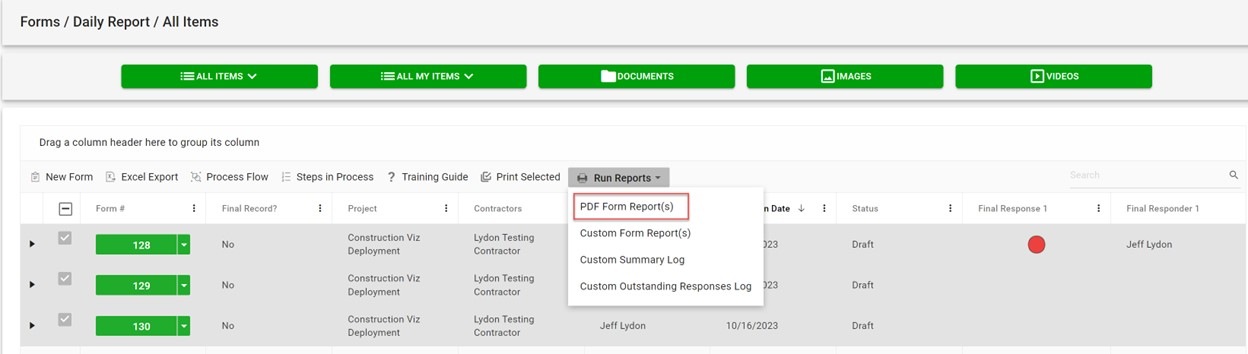
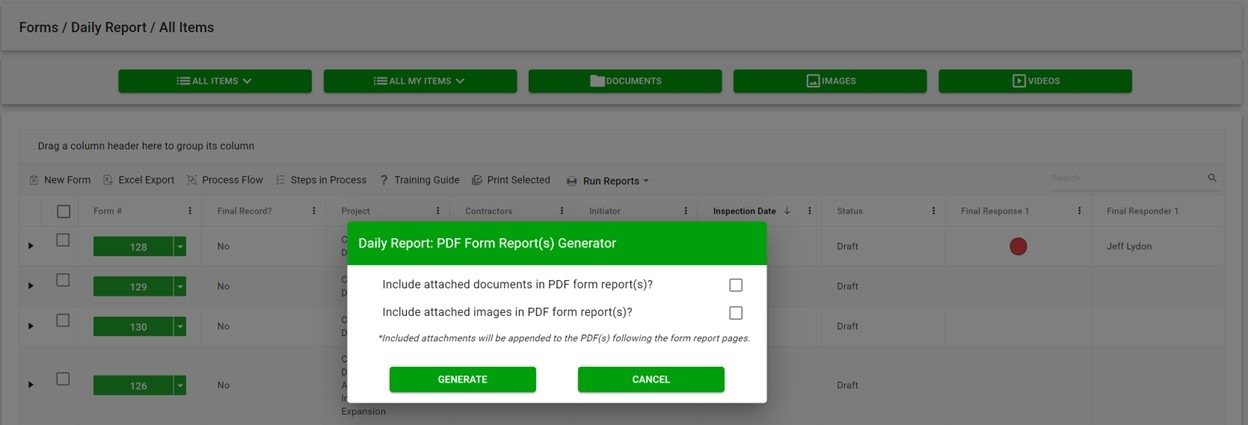
The new PDF report wizard leverages some of the same technology from our form archive wizard to create multi-form PDF binders of your project correspondence. Users select one or more forms, click the PDF Form Report(s) button, and have the option to include attachments, images, or both. And just like the form archive wizard, the attachments are automatically converted from their native format (Excel, Word, etc.) to PDF, including any images. 

Picture2

If you are wondering about file sizes impacting the system and preventing you from continuing your work, don't. While the file conversion runs, the tool prompts you to load another screen to continue working without interruption. Construction Viz will notify you when the processing is complete and the PDF files are downloaded locally.  

Picture3

Our development team at Lydon Solutions continues to drive innovations in your day-to-day workload with our Construction Viz product for Microsoft 365 so you can focus on what's important, delivering the project on time and within budget. You can request a demo of Construction Viz here, or if you need help with Microsoft 365, you can click here for a free one-hour consultation with our Microsoft technology experts. 

Managing Multiple Construction Projects with Microsoft 365 and SharePoint Online

Project Management Tools | September 13, 2022

So, you want to use Microsoft 365 and SharePoint Online to manage your construction projects? With out-of-the-box SharePoint, you will have to decide whether you will use one site per project or multiple projects per site. Fortunately, Construction Viz is flexible enough to accommodate both approaches.

Two Ways to Set Up Microsoft SharePoint to Manage Construction Projects

Before we highlight the value Construction Viz can bring, let’s look at the two ways you can setup SharePoint to manage multiple projects and the pros and cons of each approach:

Option 1: Create a SharePoint site for every project.

  • Pro: This approach ensures you wall off project data between projects and lets you easily restrict permissions to each site.
  • Con: Going this route requires more administration to update and maintain multiple site configurations and aggregate data for reporting.

Option 2: Create a single site for all projects

  • Pro: This approach makes it easier to aggregate and report on your project data.
  • Con: Using a single site can make permissions management complex and complicated depending on security requirements. You also have to decide how to define a project across all of the SharePoint assets (e.g., pages, folders, and project metadata across lists and libraries).

Unfortunately, there is no right or wrong way; the approach often depends on many factors. However, whatever method you select, Construction Viz can streamline the process for you.

How Construction Viz Simplifies Managing Multiple Projects in SharePoint

When we designed the Construction Viz Hub, we wanted to give clients the ability to manage projects the way they want in the same application within Microsoft SharePoint. With Construction Viz, you can manage a project, program, or portfolio within one site or multiple. It’s up to you!

Highlights of Construction Viz’s Multi-Project Management Features 

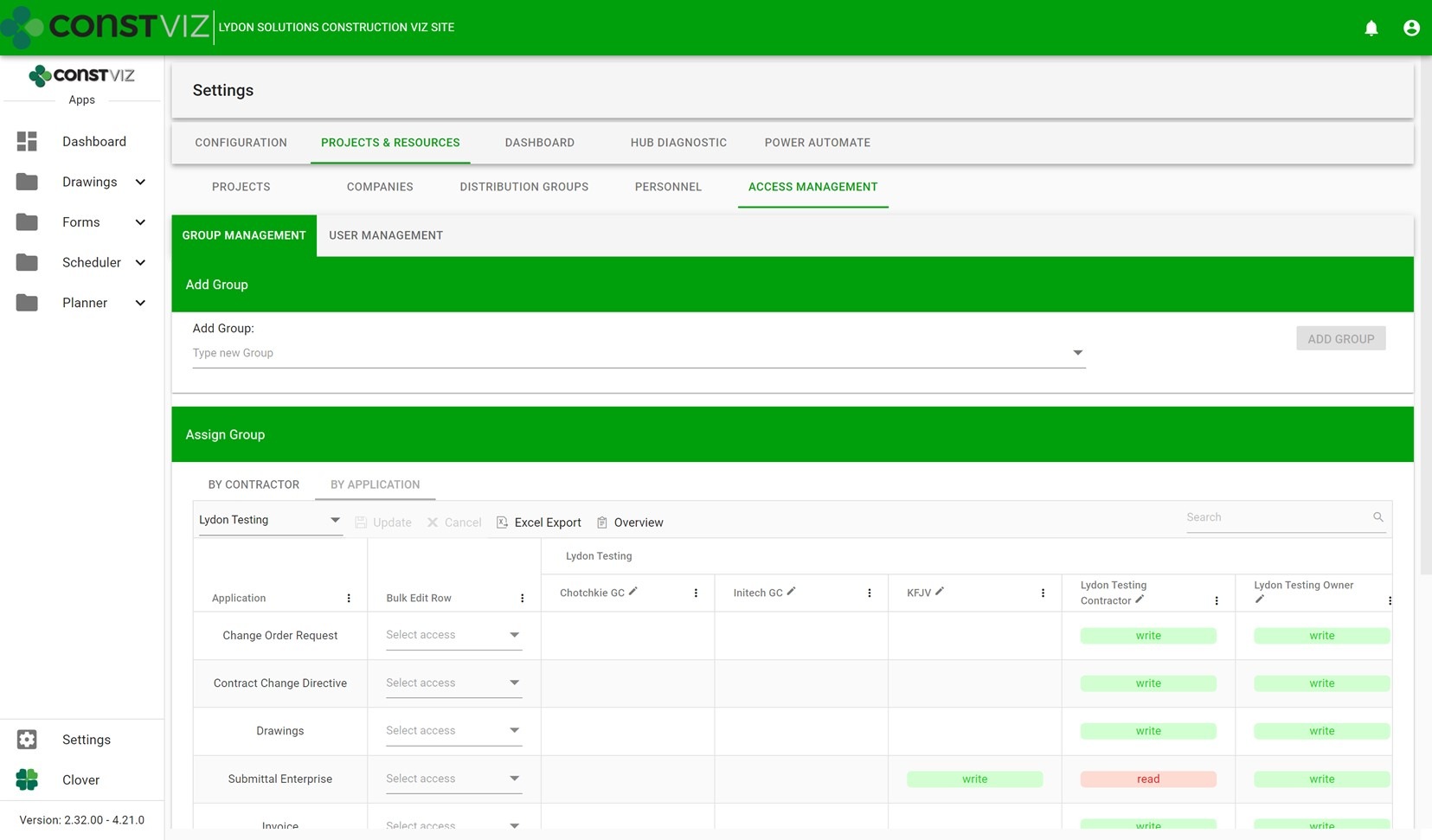
Simplified access management – We built our own access management solution on top of SharePoint to streamline the process of adding internal and external users to our applications. This custom solution reduces the administrative burden of permissions management.

Multi-Project_1

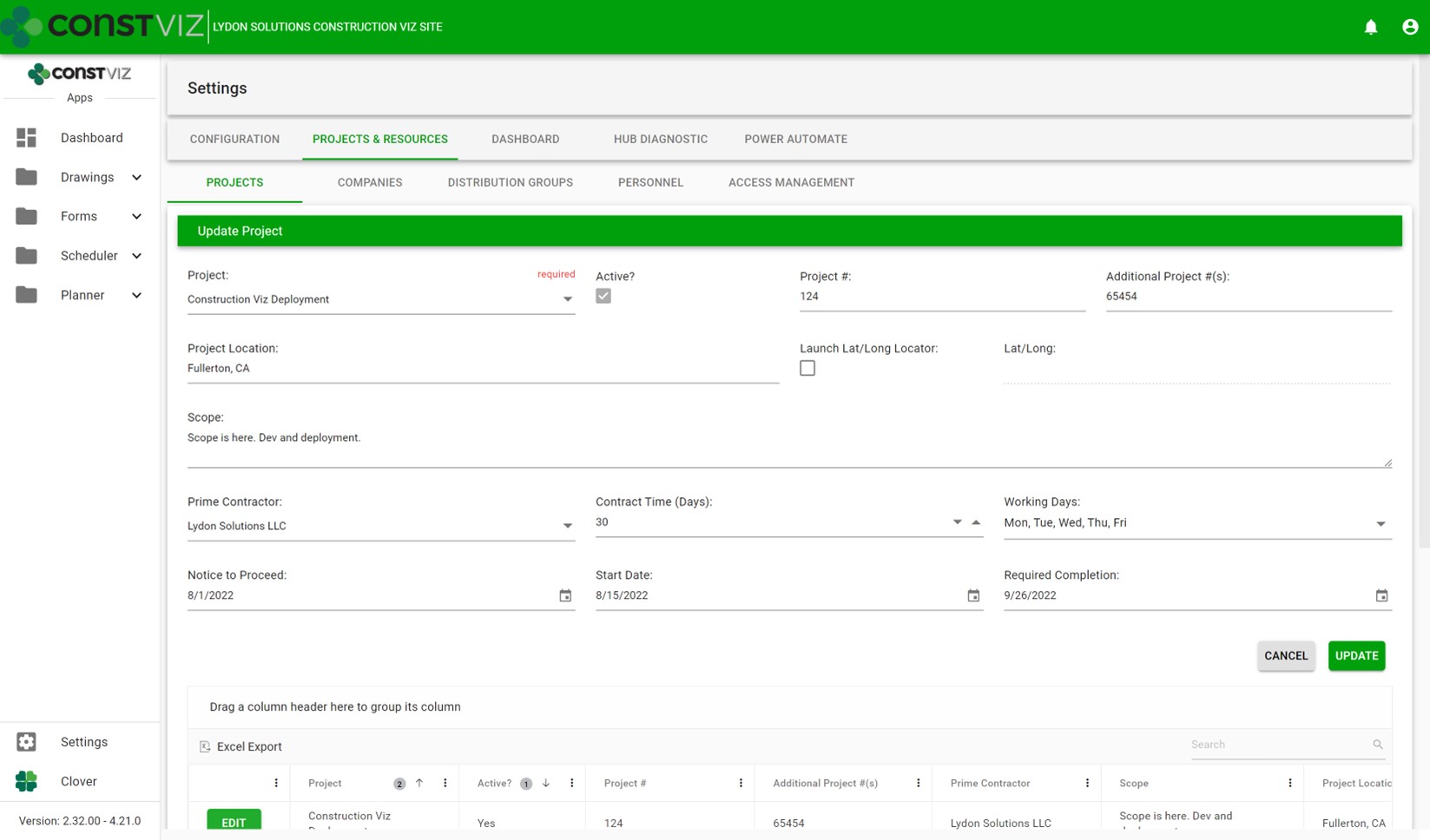
Expanded project settings – We integrated multi-project information across all the apps within a deployment. We also made it so that project pickers and default values can be unique by application, allowing for robust configuration depending on deployment requirements.

Multi-Project_2

Expanded personnel settings – We incorporated both SharePoint user and non-user management within a central location for easier access management. This feature allows for easier administration of access and distribution groups across projects.

Multi-Project_3

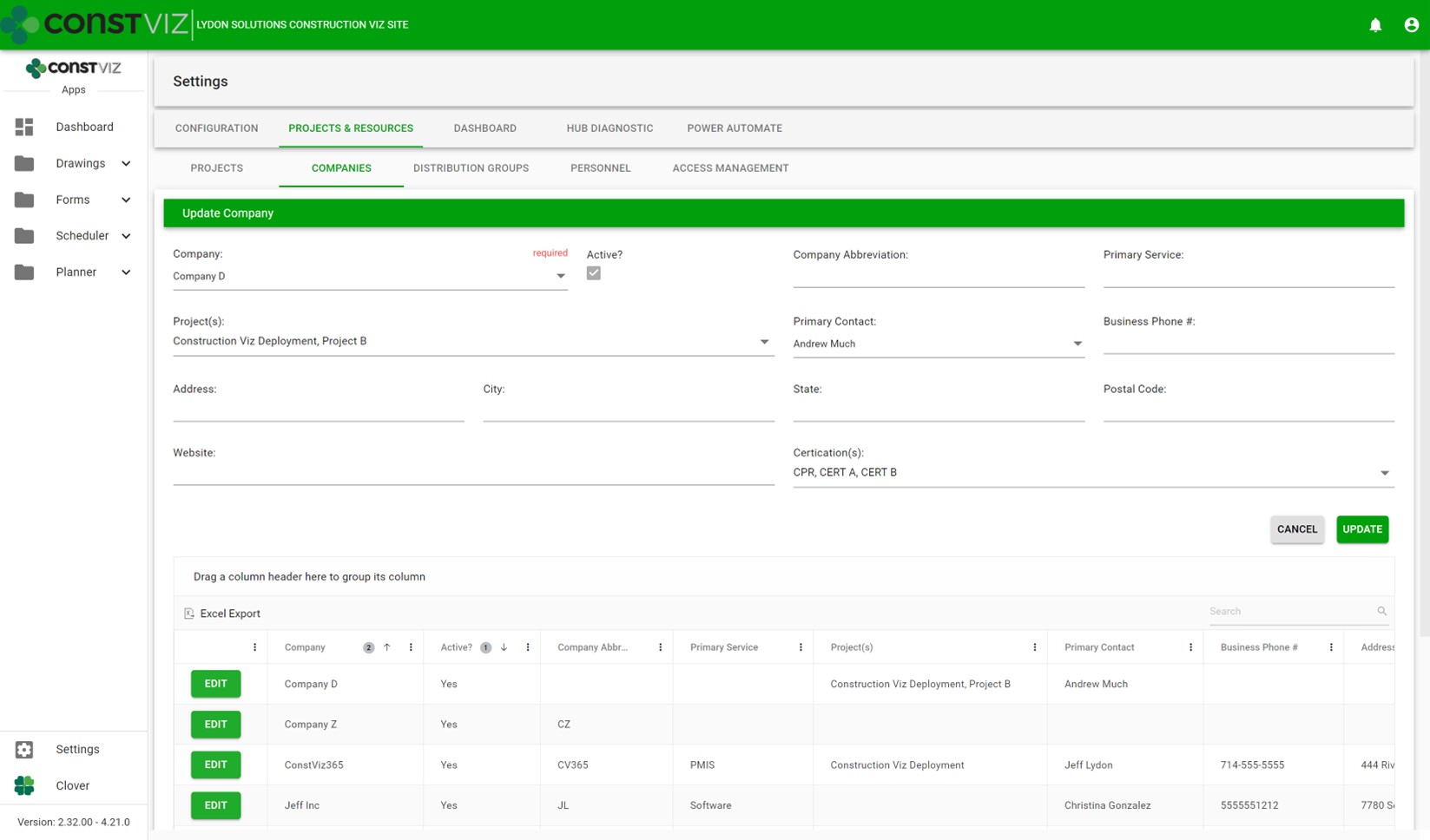
Expanded project-specific company settings – We added the ability to assign companies to one or more projects so they can be restricted and re-used across multiple projects or a program.

Multi-Project_4

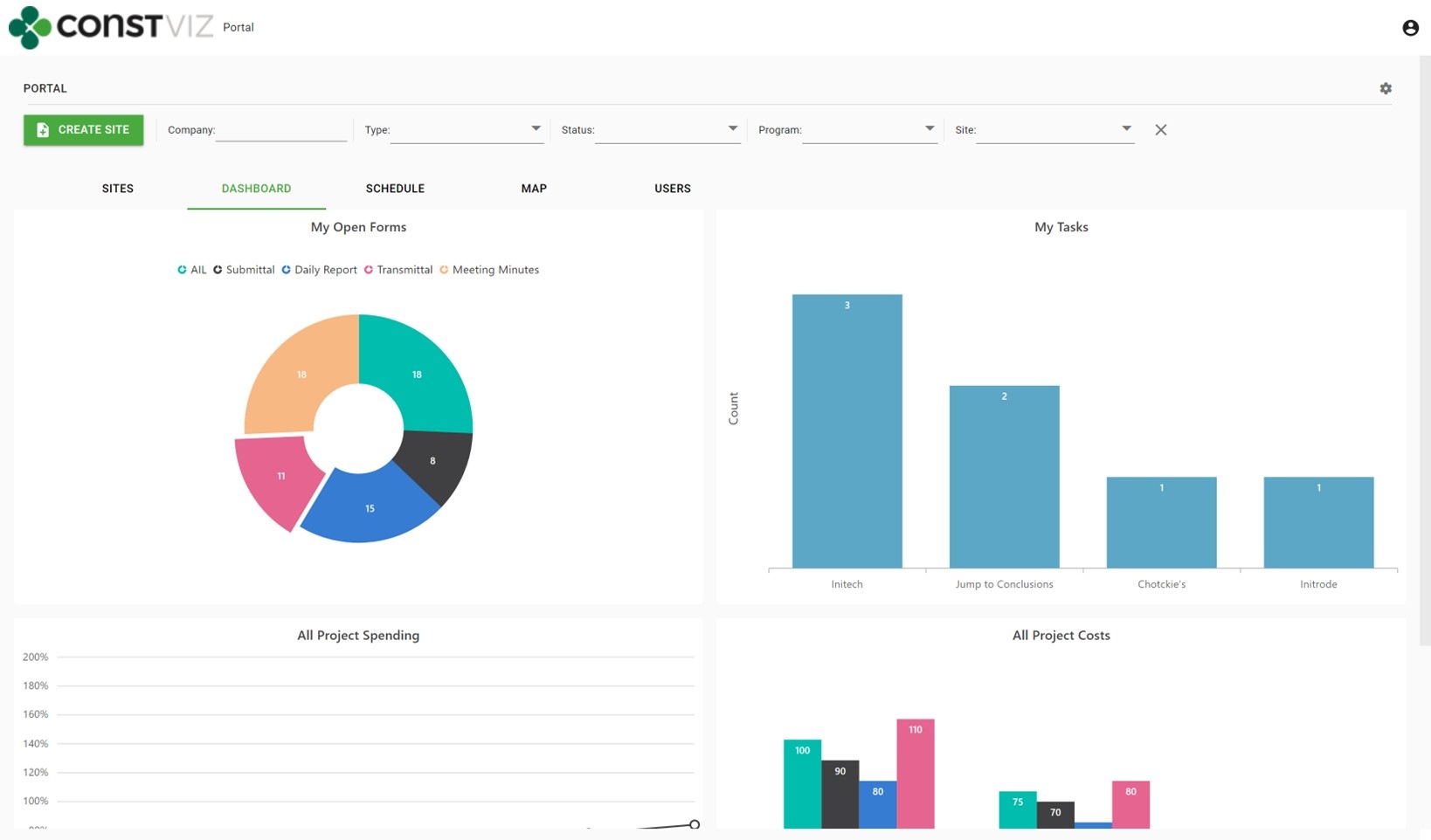
Included data and reporting rollup by program and portfolio – We built data rollup capabilities and reports for one or more sites to report project status across the portfolio.

Multi-Project_5

We made all these design considerations so that Construction Viz can provide you with the best way to manage your projects, programs, and portfolios in the most efficient way possible. You can learn more about the capabilities and features of Construction Viz on our website.

The new Construction Viz Questionnaire component provides even more choice

Project Management Tools | August 26, 2022

In construction, questionnaires are essential for gathering qualitative and quantitative information on a project. As a project manager, you want your field team to use questionnaires to report on various construction activities including, but not limited to, job site safety, project progress, quality control, identification of issues and defects, and adherence to specification and contractual requirements.

For those using Construction Viz, you may already be familiar with our standard Area of Work (AOW) component which allows you to create ad hoc questions in the Daily Report or Inspection forms. Field personnel respond to the AOW questions through set yes, no, and N/A response fields. While the functionality of the AOW component has worked great for documenting and reporting on field activities and project progress, we wanted to give our clients even more flexibility when creating unique questionnaires.

Area of Work (AOW) Component

Questionnaire_1

Introducing the new customized “Questionnaire” component, for any Construction Viz form!

The new “Questionnaire” component expands on our standard AOW component in multiple ways:

  • Custom Deployment. Your customized “Questionnaire” component is deployed per your requirements. Name your component and choose from various response field types that will be available in questionnaires within your component, including:
    • Text fields. Capture open-ended responses.
    • Standardize responses and minimize data input.
    • Date fields. Capture key dates, such as start and/or completion dates, delivery dates.
    • Number fields. Restrict responses to numerical values to track various measurable data such as quantities, hours, cost, etc.
  • Dynamic Component Configuration. You can create multiple questionnaires within your custom component, and have full control over configuration:
    • Component Configuration. As the project progresses, you can create new, or hide old, questionnaires, and re-order the questionnaires within the component so the questions are responded to in a logical sequence of project activities, etc.
    • Questionnaire Configuration. For each questionnaire, restrict how field personnel respond to your questions by selecting from the available response field types, and configure the order of the active columns and individual questions in which they appear within the questionnaire.

New Questionnaire Component

https://constructionviz.com/wp-content/uploads/2022/08/Questionnaire_OriginalScreenRecording.mp4

More than one customized “Questionnaire” component can be deployed within any Construction Viz form, and each component can be uniquely customized and configured, giving you endless possibilities for gathering the information you need manage your project.

The customized “Questionnaire” component is just one of many dynamic components we have available for Construction Viz. Let us customize your construction management experience. Check out our Construction Viz features page to learn more about what’s possible. And you can schedule a consultation and demo to discover how Construction Viz can enhance your project management workflows.

  • « Go to Previous Page
  • Page 1
  • Page 2
  • Page 3
  • Go to Next Page »

Footer

About Constructon Viz

Construction Viz is a flexible construction project management software solution powered by Microsoft SharePoint and SQL.
Read More >

Navigation

  • Home
  • About
  • Features
  • Apps
  • Blog
  • Contact
  • Login

Apps

  • Construction Viz Hub
  • Cost Report
  • Drawing Management
  • File Manager
  • GIS Maps
  • Oracle Primavera 6
  • Payment
  • Specification Management

–

  • Project Forms
  • Project Planner
  • Project Scheduler
  • Project Tracker
  • Task Manager

Connect with Us

This field is for validation purposes and should be left unchanged.

Sign up to receive helpful tips for construction project managers as well as updates about Construction Viz.

Lydon Solutions

© Lydon Solutions

  • Privacy
  • Cookies
  • Terms of Use
  • Disclaimer
  • End-user license

Click here to start a Microsoft Teams chat.

Click here to start a Microsoft Teams chat.

Contact Us
This field is for validation purposes and should be left unchanged.
Name(Required)
Join Our Newsletter

Sign up to receive helpful tips for project managers and updates about Construction Viz.

Get Started

Join Our Newsletter

Sign up to receive helpful tips for construction project managers as well as updates about Construction Viz.

This field is for validation purposes and should be left unchanged.